
Step-by-step guide
How to Create White Background Product Photos Online
Produce ecommerce-ready white-background product images with ArtCraft — cutout vs white composite, shadows, and the real tool workflow.
Updated 2026-10-16
Follow the steps below, then open the real app to complete the task.
Open white background packAnswer in one minute
To create white-background product photos for ecommerce with ArtCraft:
- Prefer the White background pack (or the white-background action in PhotoCraft tools).
- Upload a clear product photo.
- Preview the composite on white, then export HD when edges look clean.
- Check marketplace margins and file size before you publish.
This guide is about a white backdrop result, not only a transparent cutout. For transparency-first workflows, see Remove backgrounds from product photos.
Transparent cutout vs white composite
| Goal | Use | | --- | --- | | Transparent PNG to drop into any layout | Background remover | | Marketplace-ready subject on white | White background pack / white-bg action |
A white-background listing image is usually a composite: subject cut out, then placed on white (sometimes with a soft contact shadow). “Remove background” alone leaves transparency — many marketplaces still want an opaque white canvas.
Step-by-step (white background pack)
1. Open the white-background workflow
Go to White background pack. This route is the dedicated product-photo pack surface for white-backed outputs.
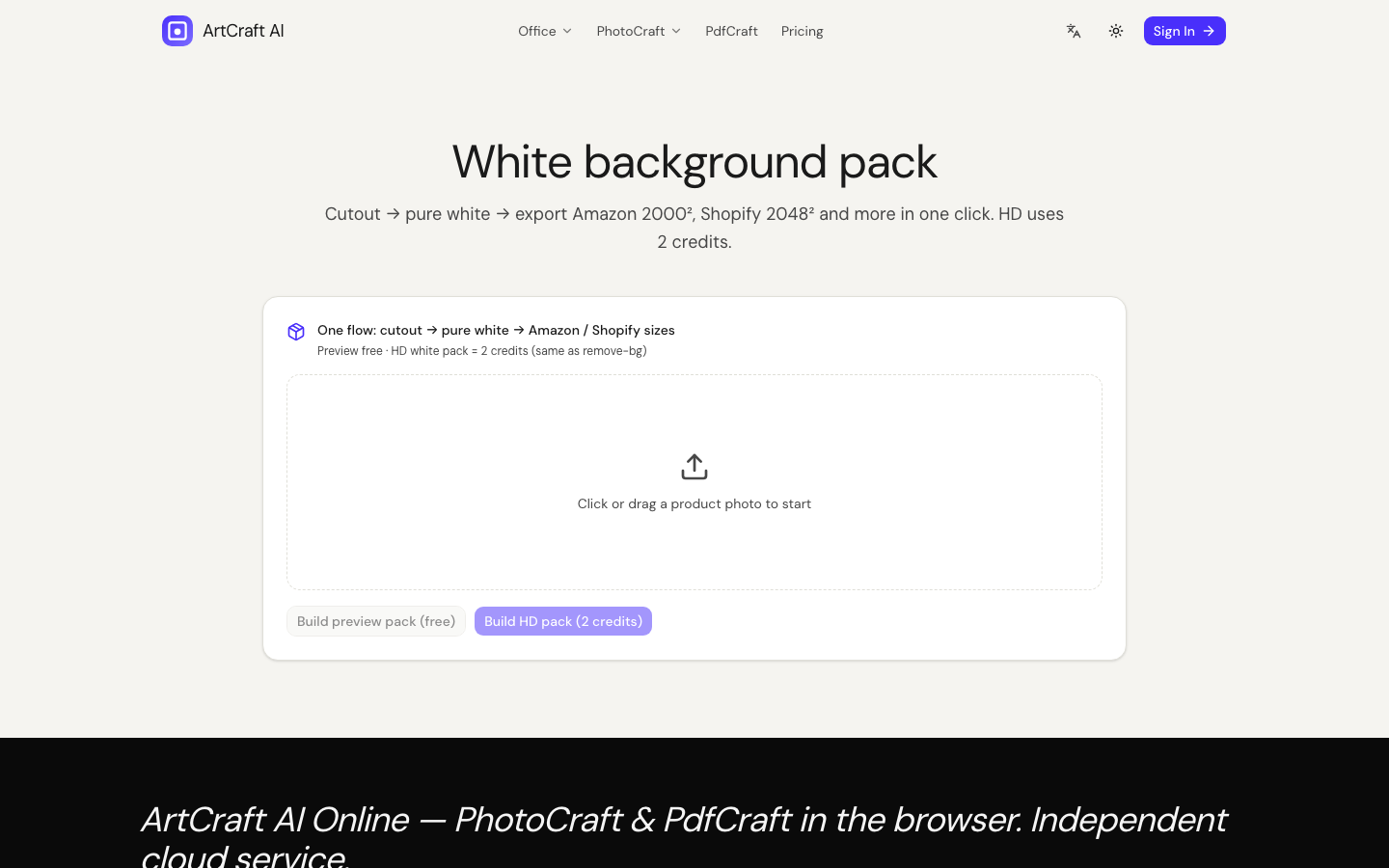
2. Upload your product photo
Use a well-lit product shot. Packshots with busy lifestyle backgrounds take more cleanup. Your image is processed with cloud AI (Fal) — not a local Photoshop action.
3. Preview, then HD
- Run a preview and inspect the silhouette against white.
- Look for color fringing, missing handles, and uneven feet/shadows.
- When the preview is acceptable, unlock HD with credits.
4. Export and marketplace-check
Download the result and verify:
- Subject is fully on white (no gray matte leftovers)
- Enough margin around the product for each marketplace’s crop rules
- File weight and dimensions match the channel you sell on
Shadows and edge cleanup
- Hard cutouts can look “floating.” Soft contact shadows often read more natural on white.
- If edges shimmer, re-run from a sharper source or clean in the image editor after.
- Reflections on glossy packaging may need manual touch-up — AI is assistive, not magic.
Honest processing disclosure
White-background and remove-bg jobs upload images for cloud inference. Do not describe this as “fully local.” By contrast, PDF merge keeps PDF bytes in the browser.
Related guide
Make a white-backed shot
FAQ
- How is this different from “remove background”?
- Remove background aims for a transparent PNG cutout. White-background workflows composite the subject onto a white (or pack) backdrop for marketplace listings.
- Which page should I use?
- Use White background pack for listing-oriented packs, or the white-background action inside PhotoCraft tools. Both use cloud AI — not a local-only filter.
- Will Amazon / marketplace size rules be perfect?
- We help you produce a clean white-backed image. Always check each marketplace’s current image specs (size, margins, compression) before you publish.
Related guides
Independent online service. Not affiliated with Microsoft Excel, Word, PowerPoint, or the official ArtCraft desktop suite.