
Step-by-step guide
How to Remove Backgrounds from Product Photos
Cut out product subjects to transparent PNG with ArtCraft PhotoCraft. Real steps, before/after examples, and honest cloud AI disclosure.
Updated 2026-10-16
Follow the steps below, then open the real app to complete the task.
Open background removerAnswer in one minute
To remove a product photo background on ArtCraft AI Online:
- Open the background remover.
- Upload a clear product shot (or try a sample).
- Run a preview, check edges, then unlock HD when it looks right.
- Download a transparent PNG for listings or further compositing.
Important: this path uses cloud AI (currently Fal). It is not a fully local / on-device cutout.
Before / after examples
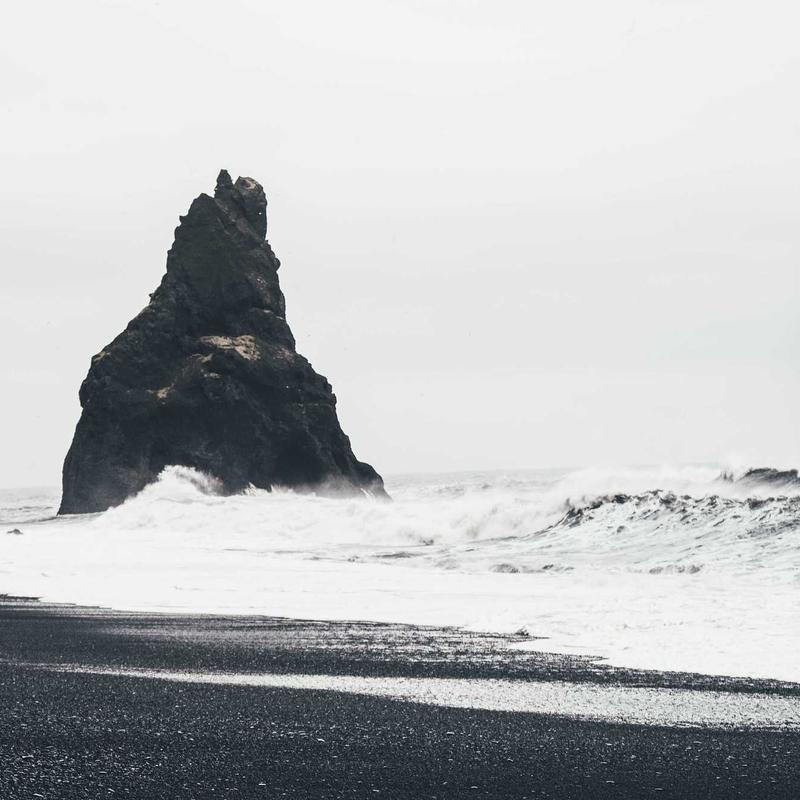
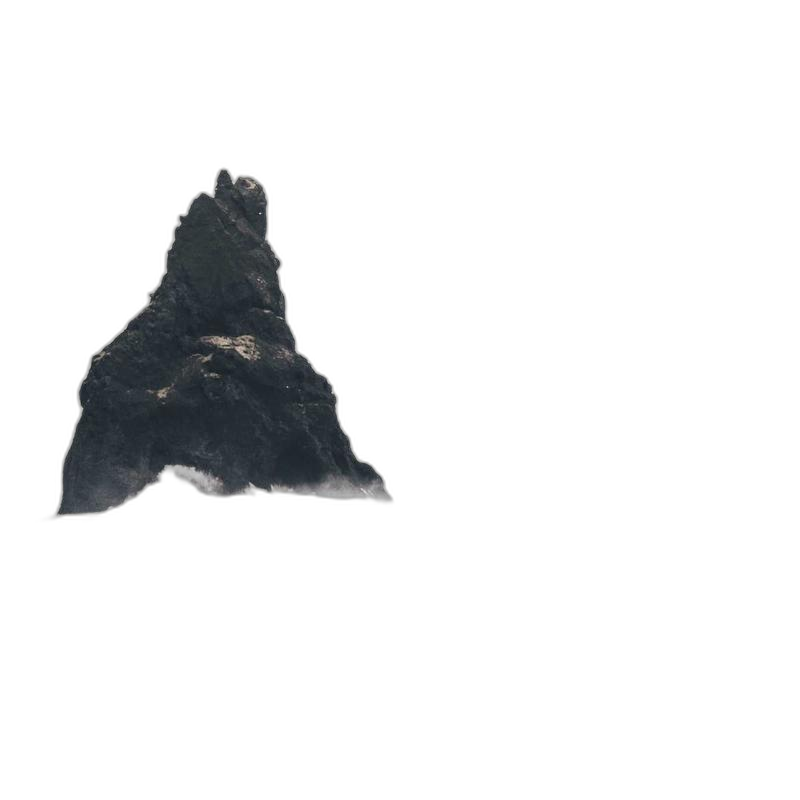
We use real product-style samples on the site (bag, bottle, sneaker). Compare edges, shadows, and subject integrity — not just “background gone.”
Step-by-step
1. Open the tool
Go to Remove background. You will see the PhotoCraft-style workspace with upload, action tabs, and preview/HD controls.
2. Upload a good source image
Best results usually need:
- A distinct subject (product not blending into the backdrop)
- Reasonable resolution (tiny thumbs struggle)
- Soft, even lighting when possible
Avoid heavy compression artifacts if you can re-export from the camera roll.
Your image is uploaded through our storage/API path so the inference provider can process it. Only use photos you are allowed to process with a third-party AI provider.
3. Run preview, then HD
- Choose Remove background.
- Run a free preview (watermarked; weekly quota and region rules may apply).
- Inspect hair-like edges, reflections, glass, and thin straps.
- When the cutout looks right, run HD with credits (signed-in account).
4. Export transparent PNG
Download the PNG and place it on your store template or design tool. If you need a white storefront backdrop instead of transparency, use the white background product photos guide.
Difficult cases
| Problem | What to try | | --- | --- | | Soft shadows look “cut off” | Soften the source shadow or composite a new shadow on white | | Glass / bottles | Expect imperfect refraction; cleanup may be needed | | Busy backgrounds | Reshoot or roughly crop tighter before cutout | | Logo distortion | Prefer HD only after preview looks stable |
Privacy & providers (accurate disclosure)
- Images for remove-bg / white-bg go through ArtCraft APIs to cloud inference (Fal models such as BiRefNet / Bria depending on action).
- Free previews may be watermarked and rate-limited.
- This is not the same privacy model as PdfCraft merge (which stays in-browser).
Related guide
Start a cutout
FAQ
- Is background removal fully local?
- No. Product photos are uploaded for cloud AI processing (currently Fal models such as BiRefNet / Bria). Do not upload photos you are not allowed to process with a third-party provider.
- What do I get for free?
- Weekly free previews (watermarked, region rules may apply). HD/clean exports use credits on a signed-in account.
- Hair, glass, and reflections look messy — what helps?
- Use a clear subject, good lighting, and less busy backgrounds when possible. For hard edges, try again or clean up in the image editor after cutout.
Related guides
Independent online service. Not affiliated with Microsoft Excel, Word, PowerPoint, or the official ArtCraft desktop suite.