
Step-by-step guide
How to Open and Edit a DOCX File Without Microsoft Word
Open and edit DOCX documents in the browser with WordCraft Online. No Word install — Alpha web build with honest format limits.
Updated 2026-10-16
Follow the steps below, then open the real app to complete the task.
Open WordCraft OnlineAnswer in one minute
You can open and edit a .docx file in the browser with WordCraft Online on ArtCraft AI Online — no Microsoft Word install.
- Open WordCraft Online and wait for the WASM editor to load.
- Use File → Open (or start from a blank / template on the home screen).
- Edit text in the document canvas.
- Save / download a
.docxwhen you are done. - Proof fonts, pagination, and layout before critical use — this is an Alpha web build.
What this guide is (and is not)
This is a product walkthrough for WordCraft Online hosted at ArtCraft AI Online. It is not Microsoft Word for the web, Google Docs, or a promise of perfect Word binary compatibility.
Upstream WordCraft documents DOCX as the primary path, with additional import/export formats depending on build support. On our deployed web build, treat DOCX open → edit → DOCX save as the path we stand behind; test any other format yourself before relying on it.
Step-by-step with WordCraft Online
1. Open the agent workspace
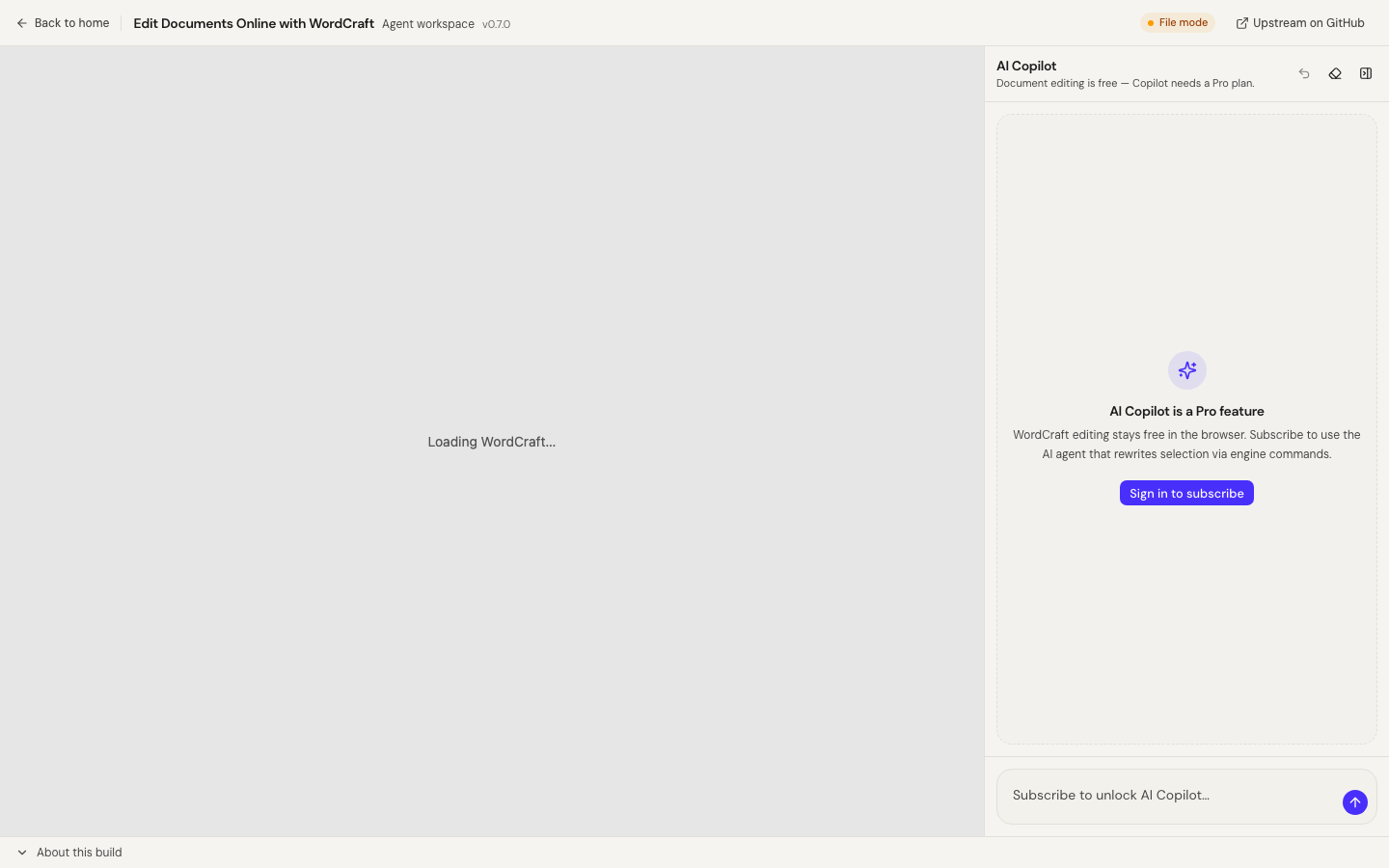
Go to WordCraft Online. You should see the shared Craft shell (back link, version, engine status) and the editor iframe. First load downloads a large WASM bundle — wait until the home screen or document canvas appears.
2. Open a DOCX (or start blank)
- From the WordCraft File / Home screen, open an existing
.docxfrom your device, or - Start from a blank document / template, then paste or type content.
Use the in-editor file UI. Document bytes are intended to stay on your device for open/save (browser downloads), separate from optional AI Copilot chat.
3. Edit the document
- Place the caret and type as in a normal word processor.
- Use the ribbon / menus inside the WASM UI for formatting.
- For long documents, scroll carefully and check headings after edits.
Optional: with a Pro plan, the side AI Copilot can rewrite selection via host engine commands when the status shows Engine connected. Mutating steps ask for confirmation.
4. Save and verify
Save/export a .docx back to your downloads folder. Open it once in Microsoft Word or another checker if the document matters.
Alpha limitations (read before you ship a contract)
| Area | Guidance | | --- | --- | | Fonts | Missing fonts may substitute; CJK coverage depends on the web font set | | Pagination | Page breaks can differ from desktop Word | | Complex layout | Tables, text boxes, and tracked changes need manual review | | Mobile | Limited — use a desktop browser | | PDF export | Not covered in this guide — we only publish PDF-export how-tos after end-to-end verification on the deployed build |
Privacy
Open/save uses the editor file UI and browser downloads. If you use Copilot, conversation tool payloads (for example selected text) can be sent to the model — do not paste secrets into the chat.
Related
When we publish a verified “DOCX → PDF in browser” guide, it will link here. For spreadsheets, see Open XLSX without Excel.
Open your document
FAQ
- Is this the official Microsoft Word for the web?
- No. WordCraft is an independent open-source web build hosted on ArtCraft AI Online. It is not affiliated with Microsoft.
- Can I rely on pixel-perfect layout?
- Not for critical print or legal documents. The Alpha web build may differ from desktop WordCraft or Microsoft Word on fonts, pagination, and complex layouts. Always proof the result.
- Is document editing free?
- Yes — editing in the browser is free. Optional AI Copilot (rewrite selection via engine commands) requires a Pro plan.
Independent online service. Not affiliated with Microsoft Excel, Word, PowerPoint, or the official ArtCraft desktop suite.