
Step-by-step guide
How to Edit an Excel Spreadsheet with an AI Agent in Your Browser
Use AI Copilot in GridCraft Online to inspect an open XLSX, propose supported edits, confirm, verify, and undo — an agent on the live workbook, not chat-only advice.
Updated 2026-10-16
Follow the steps below, then open the real app to complete the task.
Open GridCraft OnlineAnswer in one minute
In GridCraft Online you can open an .xlsx, then use AI Copilot (Pro) to:
- Inspect the open workbook with editor tools.
- Ask for a supported change in natural language.
- Review the proposed tool call.
- Confirm before anything mutates.
- Verify cells in the live grid.
- Undo if needed, then export.
This is an AI agent wired to the open spreadsheet, not a chatbot that only pastes formulas into chat.
What “AI agent” means here
| Chatbot-only assistant | AI Copilot in GridCraft |
| --- | --- |
| Suggests formulas as text | Calls inspect_document / read_sheet / execute_command on the live engine |
| You copy/paste manually | Mutating steps ask for confirmation in the side panel |
| No link to open file | Works on the workbook already loaded in the WASM editor |
Prerequisites
- Desktop Chrome, Firefox, or Safari.
- A sample workbook (or import CSV then export XLSX — see convert CSV to XLSX).
- Signed-in account with an active Pro / Studio / Agency plan for Copilot.
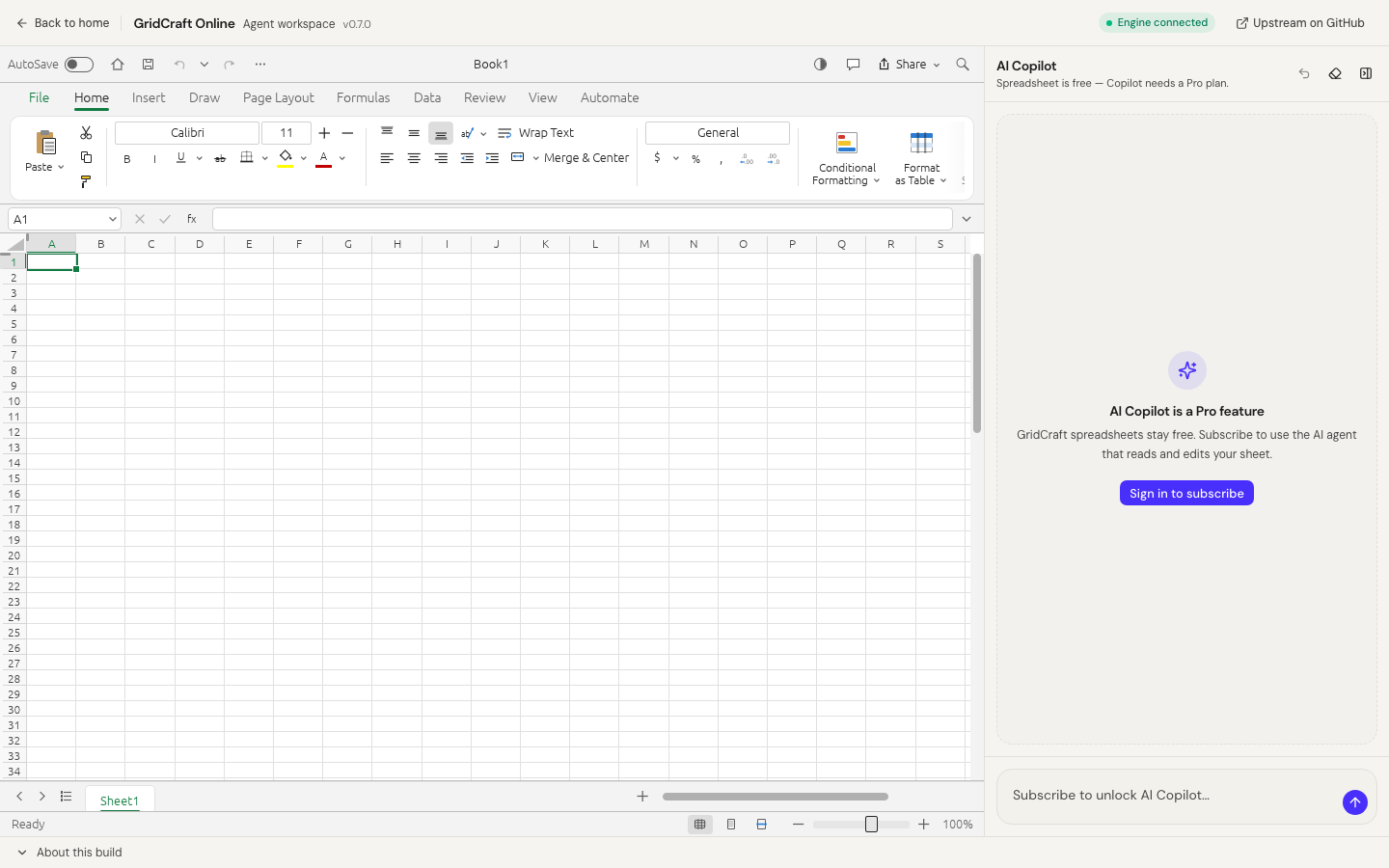
- Engine status Engine connected in the GridCraft shell.
Reproducible workflow
1. Open GridCraft and load a file
Go to GridCraft Online. Use File → Open to load an .xlsx. Confirm values appear in the grid.
2. Ask Copilot to inspect
In the AI Copilot panel, try:
Inspect this sheet and summarize the header row and row count.
You should see tool activity (for example inspect_document / read_sheet) and an answer grounded in the open file — not a generic essay.
3. Request a supported change
Example:
Sort the selected range by column B descending.
Or:
Fill column C with a SUM of A and B for the visible rows.
Copilot proposes an execute_command (or equivalent) with parameters.
4. Review → confirm → verify
- Read the confirmation preview in the panel.
- Click Confirm only if the range and intent look right.
- Watch the grid update.
- Spot-check a few cells manually.
5. Undo or export
Use Copilot Undo when available, or the editor undo, then export/download the workbook. Keep the original file until you trust the result.
Data handling (precise)
- Workbook bytes stay in the browser editor for open/save.
- Tool results (cell text, inspect payloads) can be sent to the AI Copilot service when you chat.
- Do not ask Copilot to read ranges that contain secrets, personal data, or regulated content you cannot share with an AI provider.
See also: AI spreadsheet privacy.
Limits
- Not every Excel feature has an agent command.
- Mobile is limited.
- Formula/chart parity follows the GridCraft web Alpha build.
- We do not claim to beat Microsoft Excel Copilot or Google Gemini on every enterprise feature — we claim a browser open-source editor + reviewable agent tools workflow you can try without installing desktop Office.
Related
Try it
FAQ
- Is AI Copilot free?
- Spreadsheet editing is free. AI Copilot requires an active Pro, Studio, or Agency subscription.
- Does Copilot upload my whole workbook?
- Workbook bytes stay in the browser editor. When you chat, tool results such as cell text can be sent to the AI Copilot service — not a silent full-file upload for “cloud Excel.”
- Can I undo AI changes?
- Yes — Copilot exposes an undo tool, and you should still verify cells after each confirmed mutation.
Related guides
Independent online service. Not affiliated with Microsoft Excel, Word, PowerPoint, or the official ArtCraft desktop suite.