
分步教程
How to Convert CSV to XLSX Online for Free
Import a CSV into GridCraft Online, check columns and encoding, then export an Excel-compatible .xlsx — free spreadsheet conversion in the browser.
更新于 2026-10-16
按下列步骤操作,然后打开真实应用完成任务。
Open GridCraft OnlineAnswer in one minute
To convert a CSV to Excel .xlsx online with ArtCraft:
- Open GridCraft Online.
- Import your
.csv(or TSV-style) file. - Check columns, encoding, dates, and leading zeros in the grid.
- Export / save as XLSX for Excel-compatible sharing.
This is free spreadsheet editing in the browser — not a one-click “black box” converter that hides errors.
A concrete example
Suppose you export orders from a shop admin as orders-2026-10.csv:
order_id,sku,qty,zip,notes
00102,BAG-RED,2,01234,rush
00103,BOTTLE,1,10001,"leave at door"
After import you want a colleague to open orders-2026-10.xlsx in Excel. The risky parts are leading zeros in zip (01234) and quoted commas in notes. Always verify those cells before you send the file.
Step-by-step
1. Start GridCraft Online
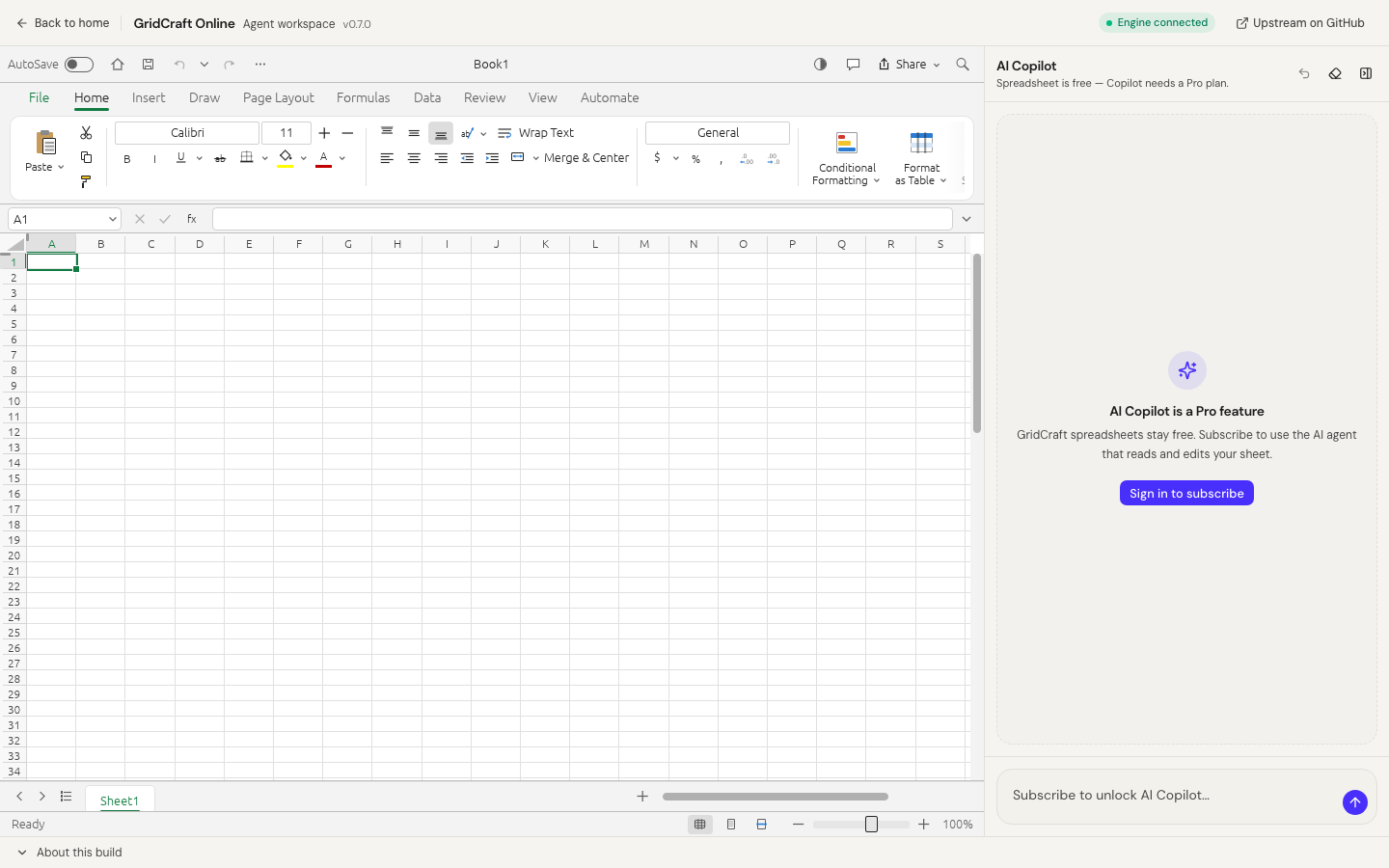
Open GridCraft Online on a desktop browser and wait for the engine UI.
2. Import the CSV
Use Open / Import and select the .csv file. If Chinese text looks garbled, re-export the source as UTF-8, or try again — our GridCraft web build includes decoding for common Chinese CSV encodings (including GBK-style sources).
3. Verify the grid (do not skip)
Check at least:
- Delimiter — columns should not collapse into one cell.
- Encoding — accents and CJK characters render correctly.
- Dates —
2026-10-16vs locale formats; fix if months/days swapped. - Leading zeros — ZIP / account IDs may become numbers; set text if needed.
- Quoted fields — commas inside quotes should stay in one cell.
4. Export XLSX
Use Save / Export / Download and choose an Excel-compatible .xlsx output. Open the result once in Excel or another reader before you archive the CSV.
TSV and other tabular files
GridCraft Online is built for spreadsheet workflows (XLSX/CSV/TSV-style imports). If a TSV opens as a single column, the delimiter was not detected — try converting to comma-separated UTF-8 CSV and import again.
Limits we will not over-claim
- Very large CSVs can be slow in the browser.
- We do not promise perfect Excel pivot/chart round-trips from CSV alone.
- Always spot-check after conversion — converters that “always succeed” often hide silent data loss.
Related guide
Convert your file now
常见问题
- Can I convert TSV as well as CSV?
- GridCraft Online accepts common tabular imports including CSV/TSV-style files. After import, confirm columns split correctly before you export XLSX.
- Why do Chinese characters look wrong?
- CSV encoding varies (UTF-8 vs GBK). Our GridCraft web build decodes common Chinese CSV encodings; if glyphs are still wrong, re-save the source as UTF-8 and import again.
- Will leading zeros in ZIP codes or IDs be preserved?
- Spreadsheet apps often coerce numeric-looking cells. After import, check ID columns and set text format if needed before export.
相关教程
独立在线服务。与 Microsoft Excel / Word / PowerPoint 及官方 ArtCraft 桌面套件无关联。